If you are anything like me, I have multiple Pinterest accounts and I’m always flipping back and forth between browsers or logging out and logging back in. Guess what? You don’t have to! There’s a feature on Pinterest that let’s you “Add an Account” just like on Instagram so it’s easy to manage multiple Pinterest accounts! No more of that logging and out or using multiple browsers!
PIN IT HERE!

How to Manage Multiple Pinterest Accounts
I have three Pinterest accounts and I’m always trying to open a different browser or log in and out of my accounts. It’s frustrating and time consuming. Going from one account to another is such a time suck. I love that this little feature, that I had no idea about, is quick and easy to use and helps me efficiently organize my Pinterest accounts.
I may use Tailwind (<— best invention ever!) to schedule all of my pin on Pinterest, but I still go in and check on my boards, messages, stats, reach etc. so I find myself wanting to login to my different Pinterest accounts.
How did I miss this?
Mind Blowing and so simple. It’s just like the Instagram feature so you can manage multiple Instagram accounts efficiently.
This is for all of you frustrated bloggers, social media manager and virtual assistants that want to be able to efficiently manage Pinterest accounts with no headache. The great thing is you don’t need any special apps and pay anything to be able to do this.
It’s simple and straight forward so let’s get to work!
How to Login to Multiple Pinterest Accounts
Like I referenced before, Pinterest’s multiple account feature works a lot like Instagram’s feature. If you use Instagram’s feature you know it’s amazing and so quick and simple to use.
First, go to the dropdown menu (Click three dots at the top of Pinterest) on the top left of your Pinterest screen and select “Add account”

Simply type in your other email address you use for the account you wish to add and your password. Click Login.
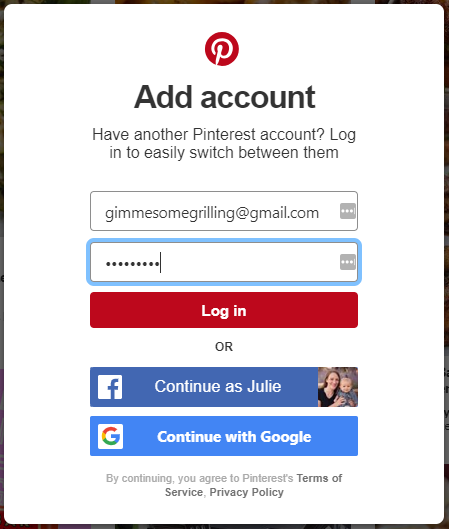
At this point you will be logged into your other account and redirected to that account.
How to Manage Multiple Pinterest Accounts
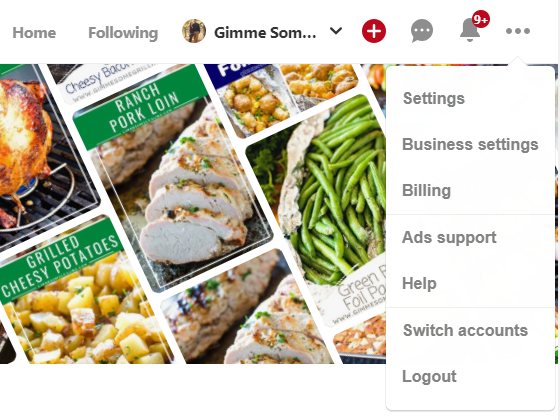
To switch back to the other account simply click your user name in the top right hand side of the screen and click on the other account name to switch to that account.

Another way to do it is to simply click the three dots in the top right hand corner, click switch accounts and then click on the account you want to switch too.
FAQ About Multiple Pinterest Accounts
If you have additional questions make sure to leave me a comment on this post so I can help you!
How Many Accounts Can I Manage at One Time on Pinterest?
You can add up to four accounts on your Pinterest account to switch back and forth from.
Does This Only Work for Business Accounts?
No!
You can switch back and forth between both personal and business accounts.
Pretty awesome, huh?
How Do I Remove an Account?
You simply log out of that account to remove it. I tested it and it works!
Why Did My Accounts Disappear?
Did you clear your cache and cookies? Or maybe switch to a different device or browser? Either of these will cause you to be logged out of all accounts. You just simple login to them again!
Remember to save this article to your Pinterest account to reference later!

Leave a Reply